Detailed step-by-step instructions
- Open Mail
- Select Add Account
Should this be the first email account you are setting up on your Mac, then it will automatically redirect you to the Add Account window
- Select Add Other Mail Account - at the end of the default list that is displayed.
- Click Continue
- Enter the following information:
Full Name: the name you wish to have displayed as Sender
Email Address: the email address you have setup with your ISP
Password: the one relevant to the above email address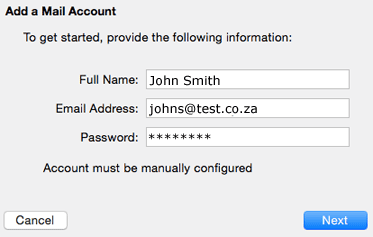
- Click Next
- You will receive an Account must be manually configured message - because Mail will attempt to contact the mail default server, which will not work.
- Click Next
- Enter the following information for the Incoming Mail Server:
Mail Server: mail.yourdomain.co.za (as sent through by superbhosting.co.za, or your IP address)
User Name: this will be your email address
Password: your email password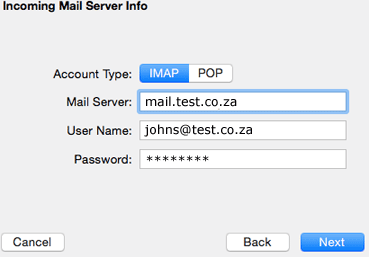
- Click Next
- Incoming Mail Server additional details
Path Prefix: leave this text block blank
Port: this will be based on the settings you have selected as:
- IMAP: 143 (if you are using SSL then 993)
- POP3: 110 (if you are using SSL then 995)
NOTE: SSL Checkbox: Tick this box if you wish to connect SSL encryption. Please use the SSL Port as indicated above.
Authentication: must be Password - select from the drop-down menu
- Click Next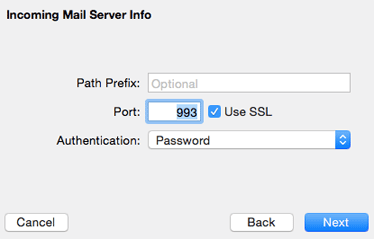
- Enter the following information for the Outgoing Mail Server:
SMTP Server: mail.yourdomain.co.za (as sent through by superbhosting.co.za, or your IP address)
User Name: this will be your email address
Password: your email password
- Click Create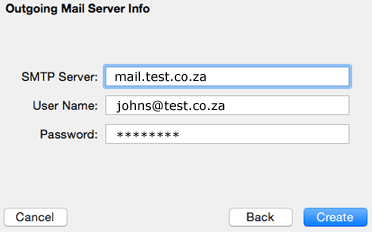
- On the Mail menu, select Preferences
- Select the Accounts tab
- Select your new email account from the left-hand column
- Select the Advanced tab
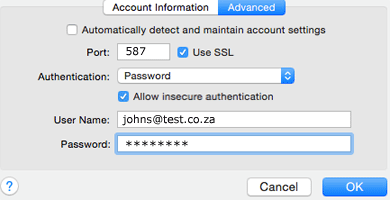
- Uncheck Automatically detect and maintain account settings
- Navigate back to the Accounts tab
- From the Outgoing Mail Server (SMTP) drop-down menu - select Edit SMTP Server List
- Select the Advanced tab
- Uncheck Automatically detect and maintain account settings
- Port: it is highly recommended to use 587 (without SSL or 465 with SSL) as many ISPs block the default port 25
- Authentication: select Password from the drop-down menu
- Check the Allow insecure authentication box
NOTE: if you do not see this option, you may have to update Apple Mail or Yosemite to the latest version
- Click OK