Detailed step-by-step instructions
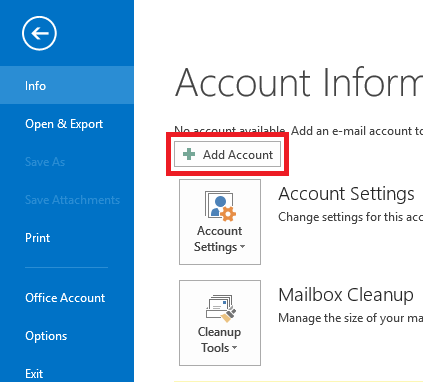
1. Click on the File tab in the top-left corner of the Outlook window.

2. Click Add Account.
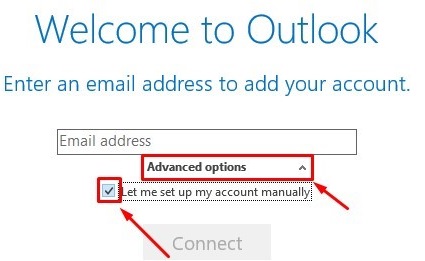
3. Click on Advanced Options and ensure that 'Let me set up my account manually' is enabled.
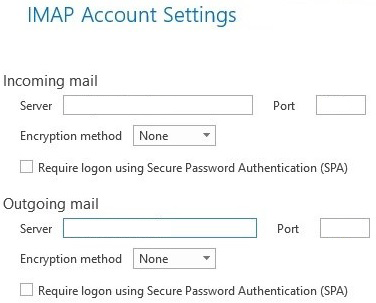
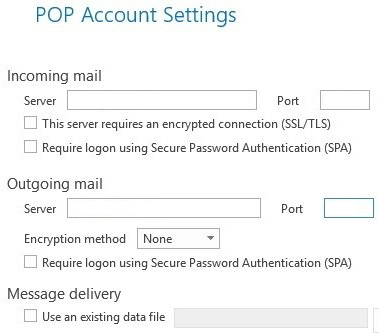
4. Select either IMAP or POP depending on your requirements.
5. Complete the details as follows:
- Set Incoming mail server and Outgoing mail server to mail.yourdomain.co.za (ask your hosting provider for your mail server details).
- For IMAP (recommended), set Port to 993.
- For POP, set Port to 995.
- Set Outgoing Port to 465.
- Set both encryption methods to SSL/TLS.
- Check the "Require logon using Secure Password Authentication (SPA)" box.
6. Click Next - wait for Outlook to Request the Password of the Email Account.
7. Click OK - the email account will now be set up.