When you might need this
You'll want to update your card details if:
- Your card has expired (or is about to)
- You've been issued a new or replacement card by your bank
- You'd just like your subscription to be billed to a different card
Keeping your card up to date means your services keep running smoothly without any interruptions.
What you'll need
- Your Superb Hosting client area login details
- Your new card handy (card number, expiry date, and CVV)
That's it! The whole process happens securely through Payfast, our payment provider.
Step-by-step guide
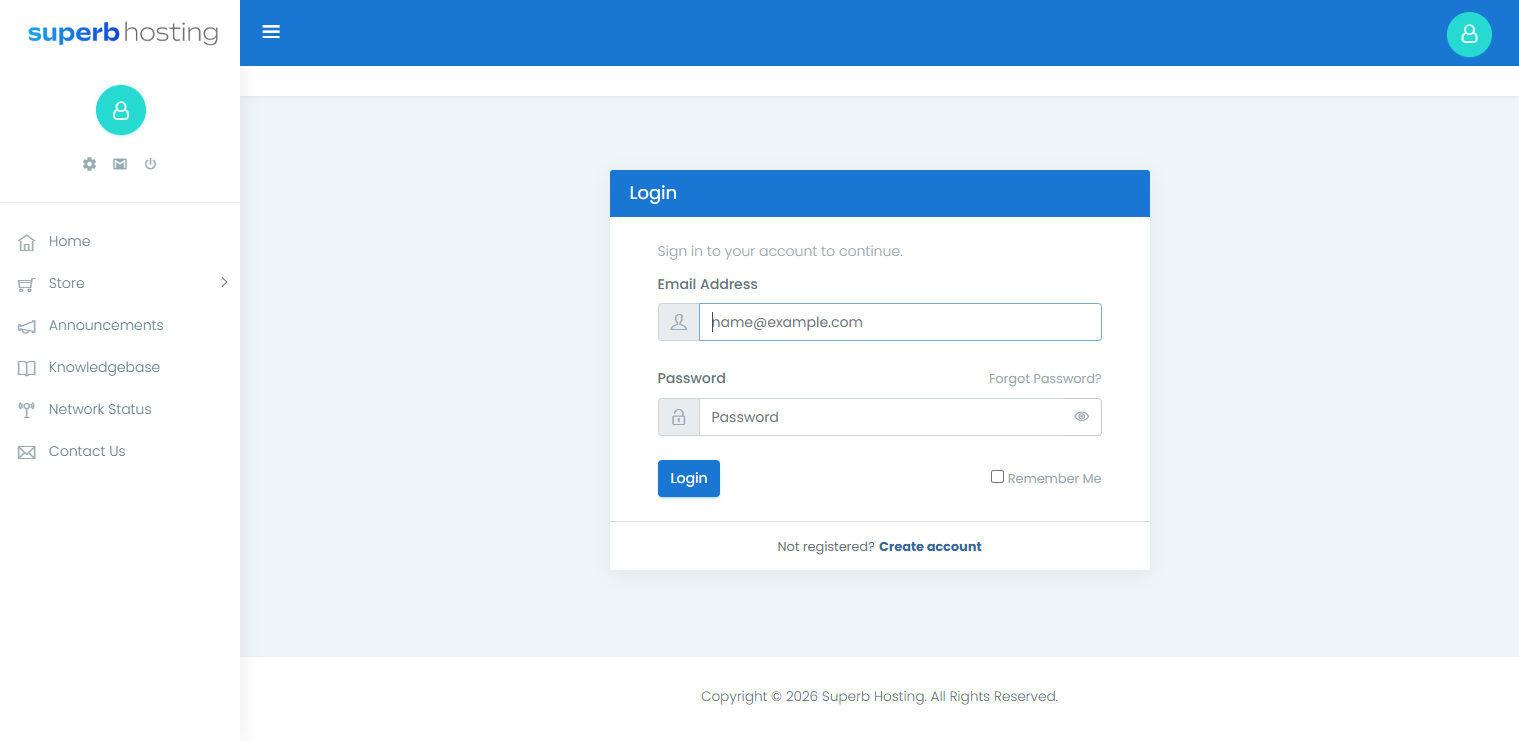
Step 1: Log in to your client area
Head to our website and log in to your Superb Hosting client portal using your email address and password.
Step 2: Open your Payment Methods
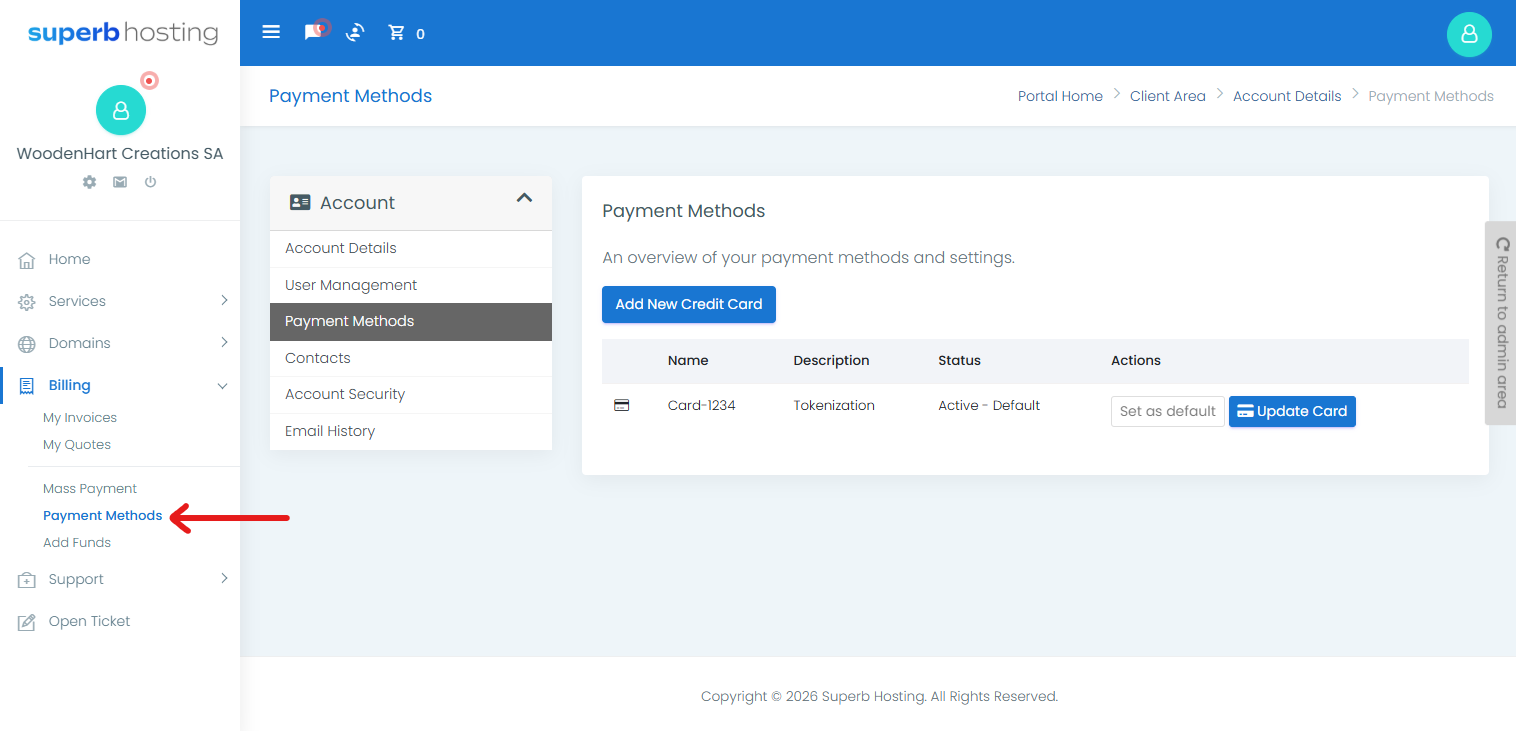
Once you're logged in, look at the menu on the left-hand side. Click Billing, then click Payment Methods. You'll now see the Payment Methods page, which lists the card currently saved on your account.
Step 3: Click "Update Card"
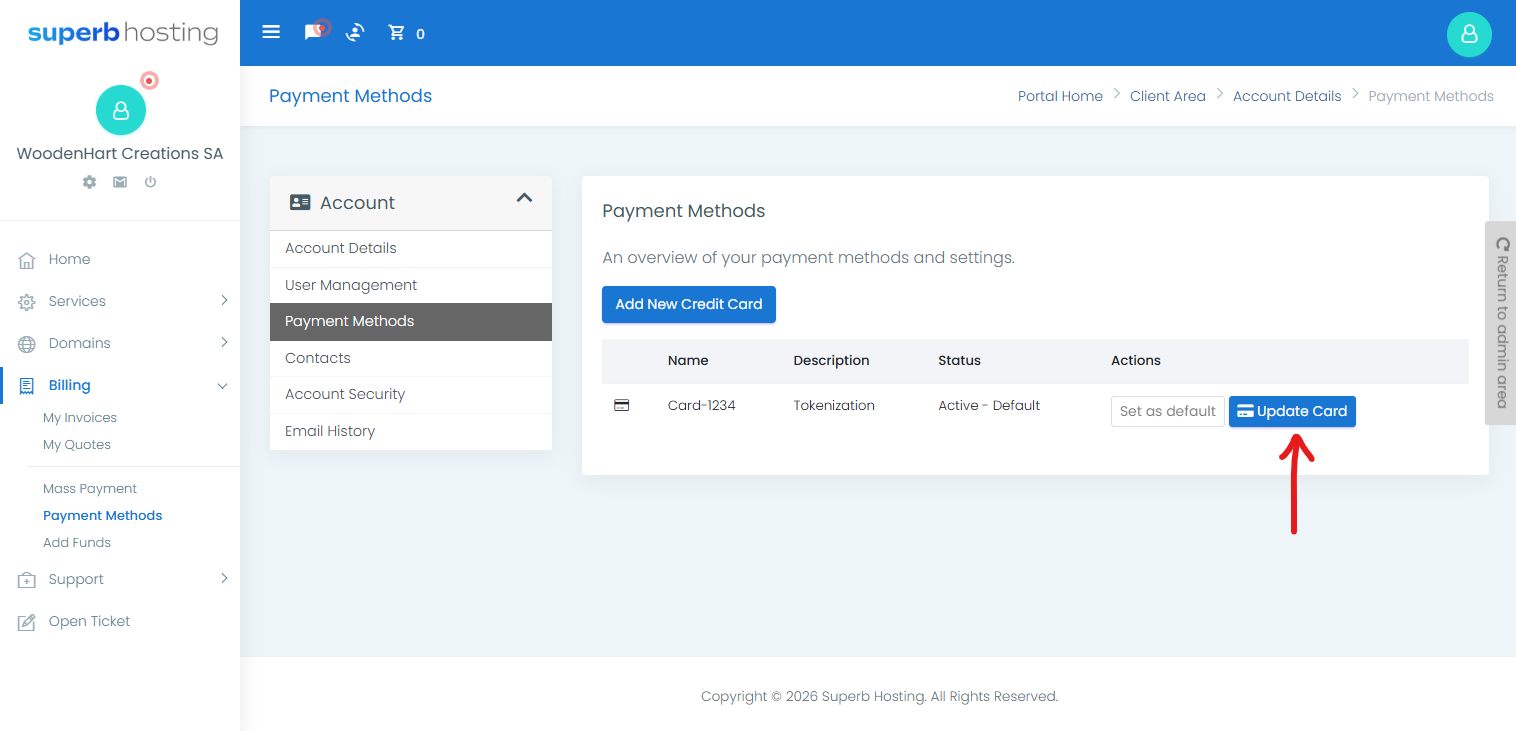
Next to your saved card, in the Actions column on the right, click the blue Update Card button.
Step 4: Enter your new card details on Payfast
A new tab will open on the secure Payfast website, where you can safely enter your new card details.
Follow the prompts on the Payfast page to enter your:
- Card number
- Expiry date
- CVV (the 3-digit number on the back of your card)
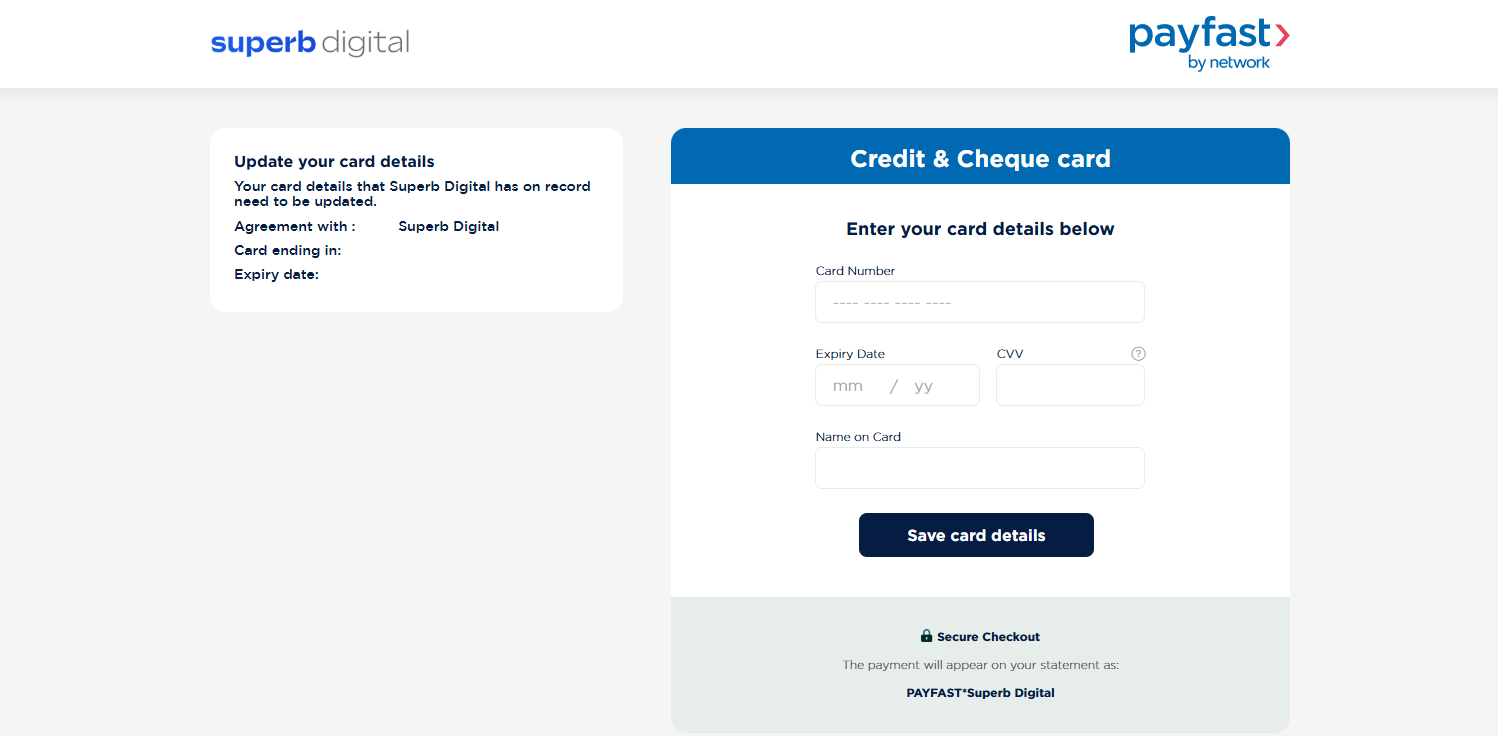
Once you've confirmed the details, Payfast will securely save your new card.
Step 5: You're all done!
Your new card details are now linked to your subscription, and your future payments will automatically use the updated card.
You can safely close the Payfast tab and return to your client area.
Frequently asked questions
Is it safe to enter my card details? Yes. Your card details are entered directly on Payfast's secure, encrypted payment page, not on our website. We never see or store your full card number.
Do I need to let Superb Hosting know once I've updated my card? No need! Once you've updated your card through Payfast, everything is handled automatically. There's nothing further you need to do.
I don't see an "Update Card" button next to my card. What now? The Update Card button appears for cards set up through Payfast's subscription billing. If you don't see it, your payment may be set up differently. Please open a support ticket or email contact@superbhosting.co.za and we'll gladly help you update your details.
My card has already expired and a payment failed. Will updating fix it? Updating your card sorts out your future payments, but it won't automatically settle an invoice that has already failed. If you have an outstanding invoice, you'll likely need to pay it manually on your dashboard using your new card details. From your next debit (the following month) onwards, payments will be taken from your new card automatically.
Still need a hand?
If you get stuck at any point or have a question, we're here to help. Simply open a support ticket from your client area or email contact@superbhosting.co.za and we'll be happy to assist.